
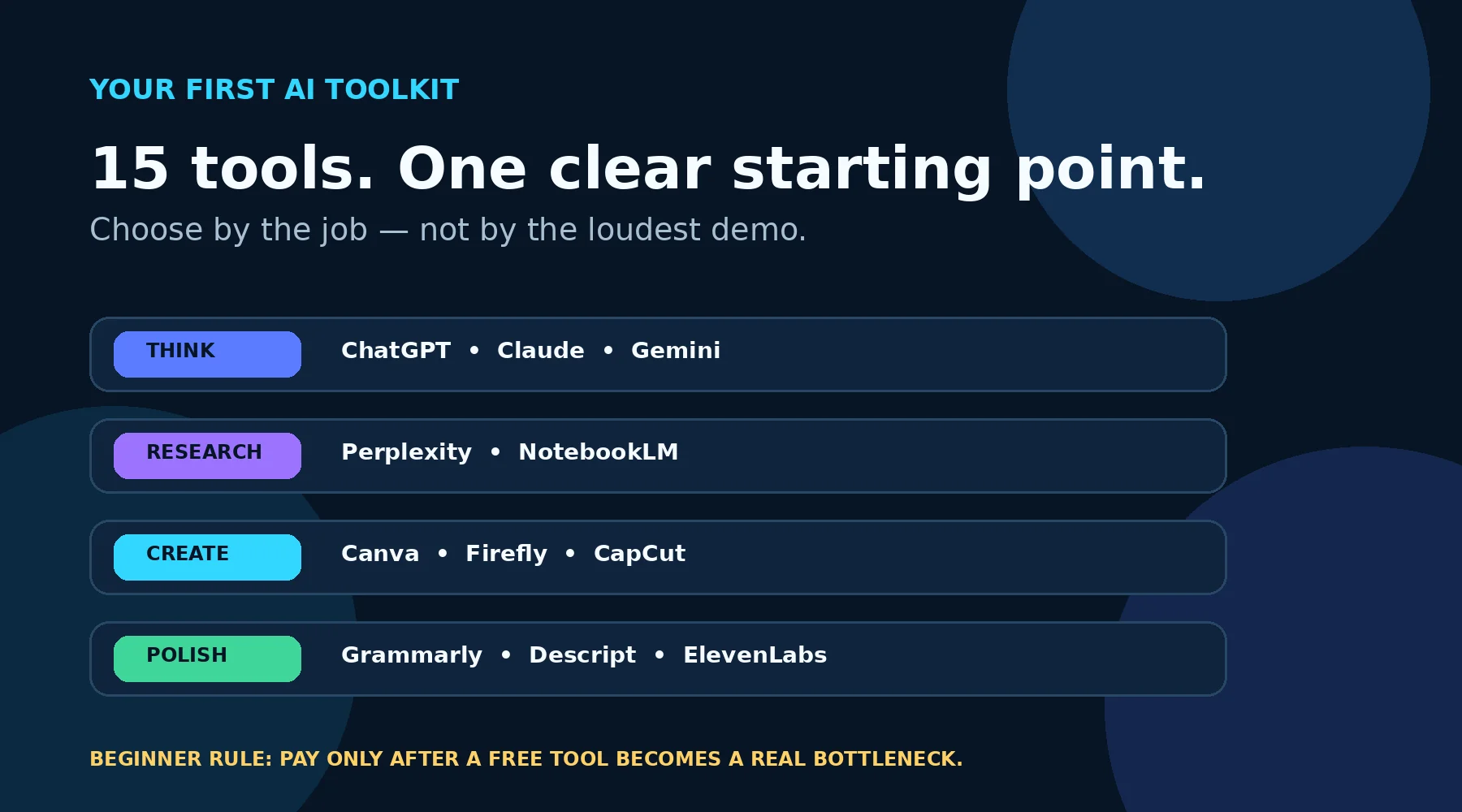
The surprising answer: you do not need 15 tools
The AI tool market wants you to feel behind. Every week brings a new “must-have” app, a new model, and another $20 subscription.
But beginners rarely have a tool problem. They have a matching problem: the tool looks impressive, yet it does not fit the job waiting on their desk.
So this list of easy AI tools for beginners does something different. It does not rank products by hype. It matches each tool to a specific beginner task, shows the cheapest sensible starting point, and tells you when to skip it.
That last part matters. A free tool you understand will beat a premium tool you barely open. And once you see the pattern, choosing gets much easier.
My hands-on experience with these tools
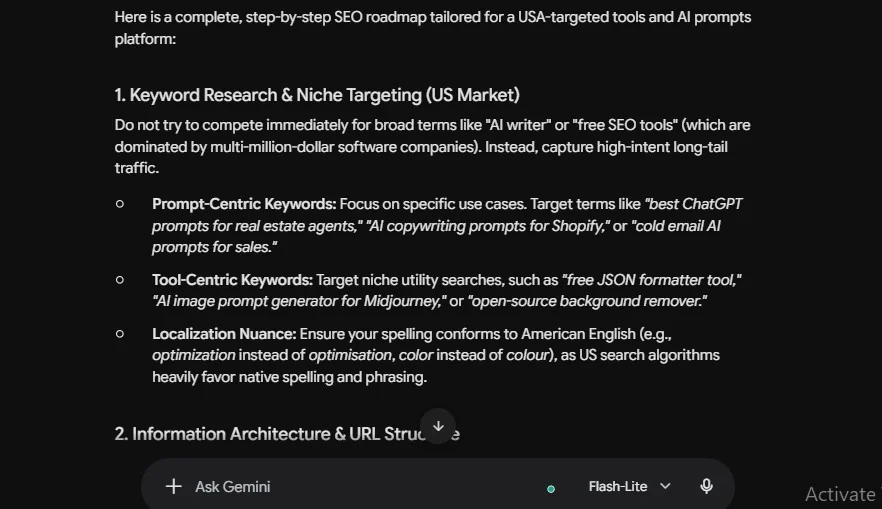
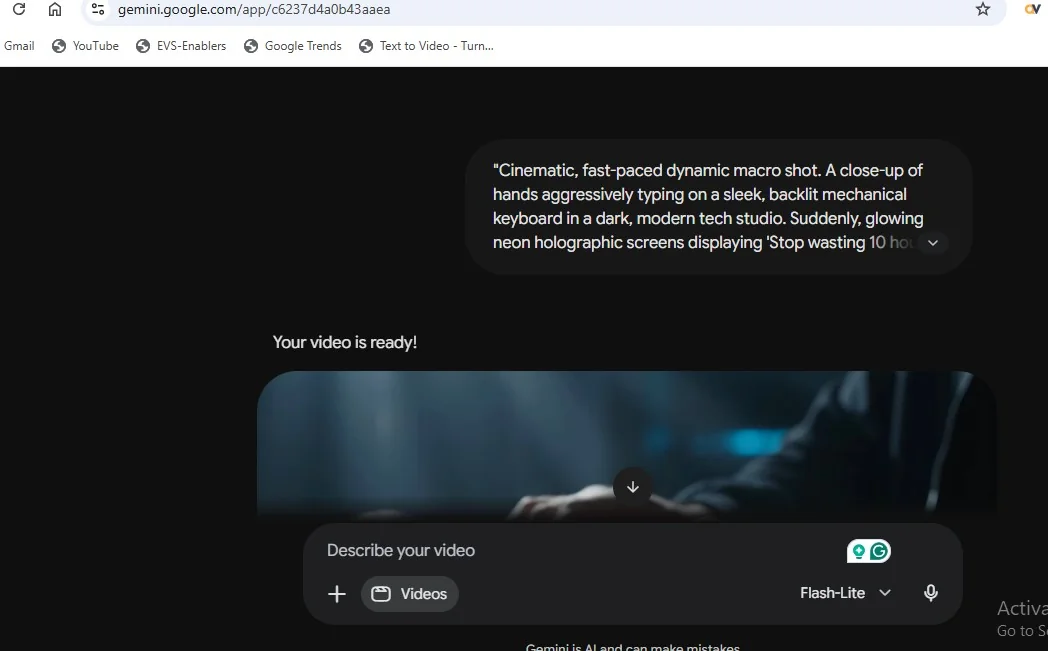
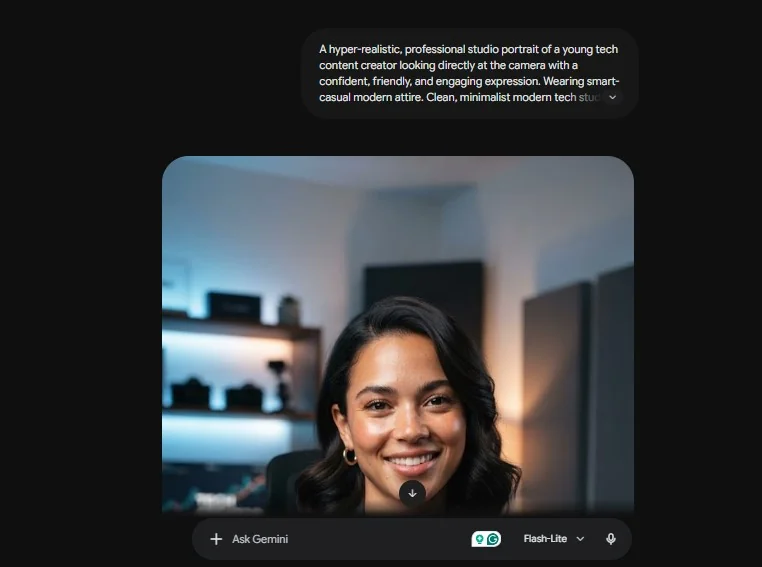
I have personally used both ChatGPT and Gemini for automation and SEO tasks. For SEO work, I found Gemini the most useful — its suggestions needed the least fixing before I could use them. ChatGPT, on the other hand, is better at writing prompts; when I need the right instructions to get a job done, I start there. My workflow now is simple: ChatGPT for crafting the prompt, Gemini for the SEO execution.
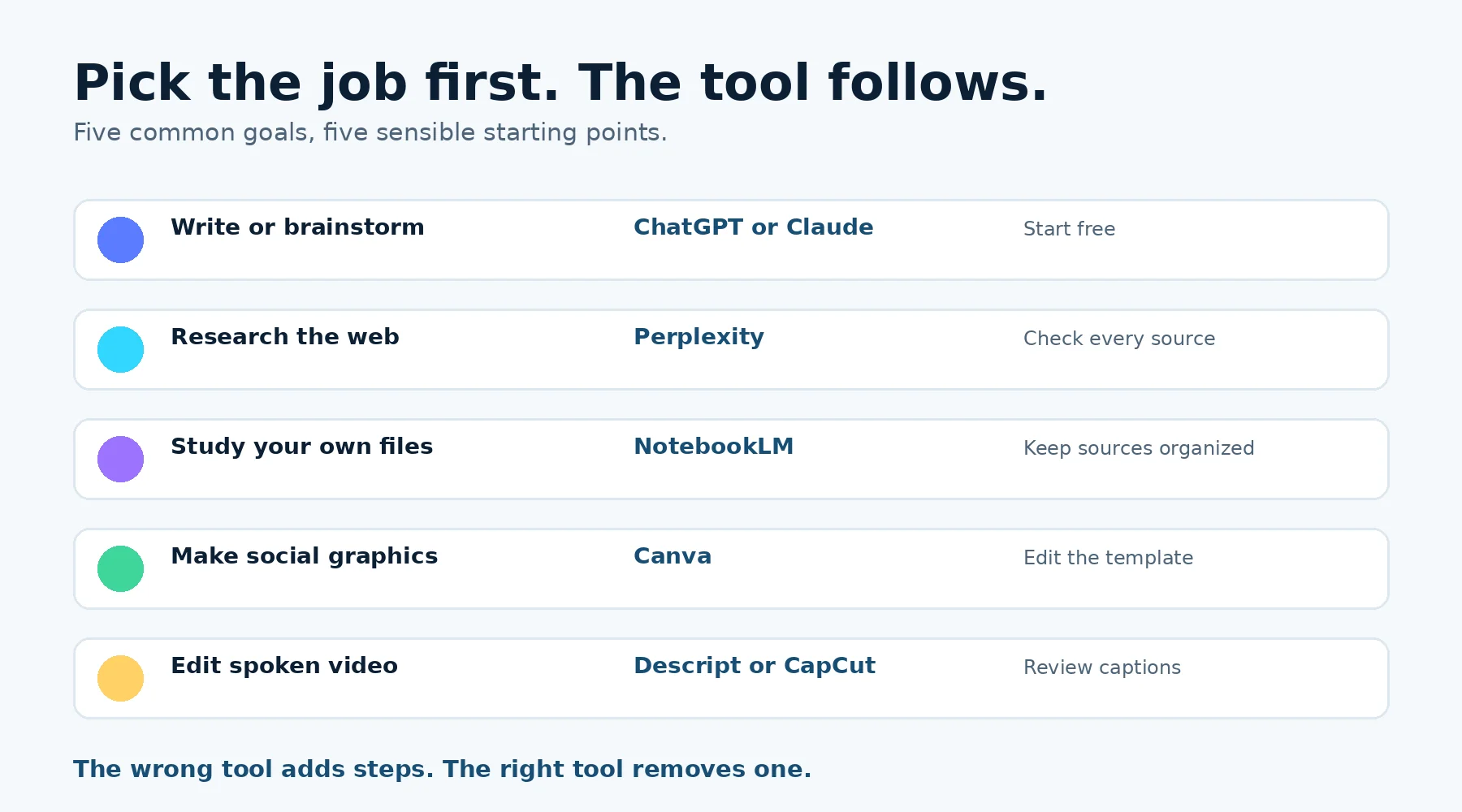
Choose the task first. The product name comes second.
Use this five-minute filter before signing up
- Job fit: Can you describe the task in one sentence? “Summarize these three PDFs” is useful. “Do AI” is not.
- Output fit: Do you need editable text, a cited answer, a slide deck, an audio file, or a finished video? Pick the tool that exports what you actually need.
- Verification cost: The faster a tool produces factual claims, the more carefully you must verify them. Citations help, but a citation is not proof until you open it.
- Privacy fit: Do not paste passwords, account numbers, medical records, confidential client material, or unpublished business data into a consumer AI tool.
- Free-tier friction: Use the free plan for one real project. Upgrade only when a known limit repeatedly wastes time or blocks paid work.
Easy AI tools for beginners at a glance
| Tool | Best for | Free start? | Watch out for |
|---|---|---|---|
| ChatGPT | General assistant | Yes | Overconfident facts |
| Claude | Long-form thinking | Yes | Usage limits |
| Gemini | Google workflow | Yes | Plan complexity |
| Perplexity | Web research | Yes | Weak sources |
| NotebookLM | Your documents | Yes | Source quality |
| Canva | Social graphics | Yes | Template sameness |
| Firefly | Image editing | Yes | Credit usage |
| CapCut | Short-form video | Yes | Regional pricing |
| Descript | Transcript editing | Yes | Credit limits |
| Grammarly | Writing polish | Yes | Over-editing |
| Notion AI | Workspace knowledge | Trial | Paid workspace |
| Otter.ai | Meeting notes | Yes | Consent + errors |
| Gamma | Fast presentations | Yes | Export cleanup |
| ElevenLabs | AI voice | Yes | Usage rights |
| Zapier | App automation | Yes | Task overages |
Start here: general AI assistants
If you buy one subscription before you know your workflow, you will probably buy the wrong one. Test these free versions on the same task first; the difference becomes obvious when the prompt is yours.
1. ChatGPT
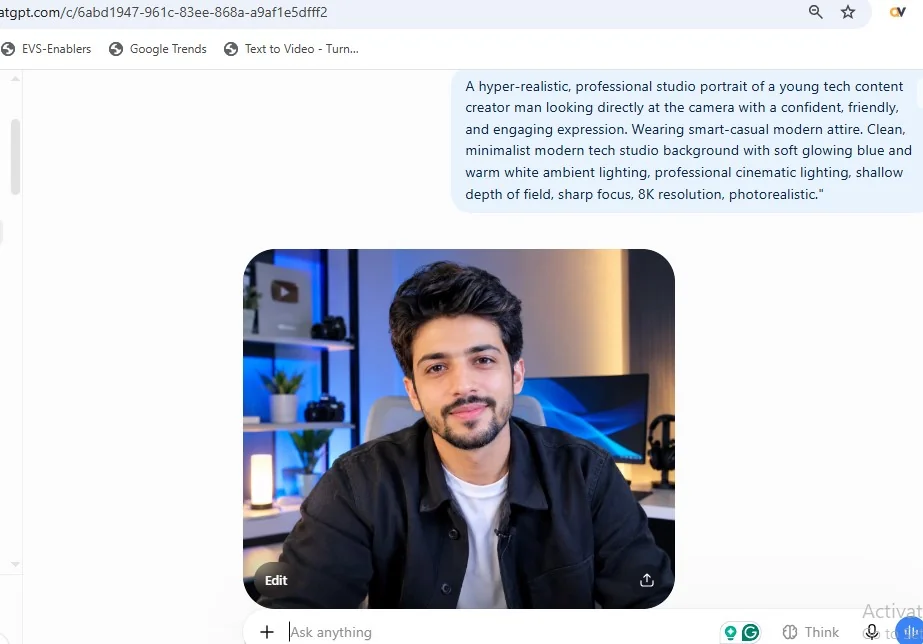
The safest all-round starting point. ChatGPT is broad enough to help with an email in the morning, a spreadsheet at lunch, and an image brief in the afternoon. That range makes it a useful first assistant, especially when you are still discovering where AI saves you time.
Best for: Brainstorming, drafting, file analysis, planning, and learning one flexible interface.
Free or paid? A capable free plan is available. ChatGPT Plus is $20 per month in the US; paid access raises limits and expands tool access.
Practical trick: Ask it to label each factual claim as “from my input,” “common knowledge,” or “needs verification.” That small step makes checking faster.
Honest catch: Fluent writing can sound more certain than the evidence deserves. It may also miss context you never supplied. Review names, numbers, quotes, and links.
Skip it if: Your only need is current, source-heavy research. Perplexity may get you to the evidence faster.
Pricing / feature source: OpenAI: What is ChatGPT Plus?
2. Claude
Choose it when the material is long and the thinking matters. Claude is particularly approachable when you want a calm editor rather than a rapid-fire idea machine. Give it a long draft and ask for the argument, missing evidence, and weak transitions before you ask for a rewrite.
Best for: Reading long drafts, restructuring reports, comparing documents, and improving tone without turning everything into marketing copy.
Free or paid? Claude has a free plan. Claude Pro is listed at $20 month-to-month or $17 per month with an annual subscription billed upfront.
Practical trick: Separate diagnosis from rewriting. If you request both at once, you may accept a polished draft without understanding what changed.
Honest catch / skip if: You mostly need image generation, app automation, or a tightly integrated Google workflow.
Pricing / feature source: Anthropic: Plans & Pricing
3. Google Gemini
It makes the most sense when your day already lives in Google. The convenience is context. When an assistant sits close to the apps you already use, fewer copy-paste steps can matter more than a small model difference. But connected access deserves caution: review permissions before letting any tool reach your inbox or files.
Best for: People working across Gmail, Docs, Drive, and Google’s wider ecosystem.
Free or paid? Gemini can be used without a paid AI plan. Google AI plans provide higher limits and feature access; availability varies by account, region, and plan.
Practical trick: Use a temporary, non-sensitive sample before connecting a real workspace. Confirm what the tool can read, what it can write, and how to disconnect it.
Honest catch / skip if: You do not use Google apps or you want one independent assistant with fewer ecosystem decisions.
Pricing / feature source: Google: Google AI plans (Pro & Ultra)
Research tools: get closer to the source
A chatbot can give you an answer. A research workflow should give you a trail. The trail is what lets you catch the confident mistake before it reaches a customer, teacher, or boss.
4. Perplexity
Use it to find the starting evidence, not to end the investigation. Perplexity’s advantage is not that every answer is correct. It is that the answer is attached to links you can inspect. That makes it useful for discovering vocabulary, comparing viewpoints, and building a source list.
Best for: Fast web research with inline citations, topic discovery, and source collection.
Free or paid? A free tier covers casual searches. Perplexity Pro is commonly listed at $20 per month, with an annual option; verify the live plan before paying.
Practical trick: Prefer government, academic, standards, company documentation, and original datasets over articles that summarize other articles.
Honest catch / skip if: You need to reason only over private files, or you are unwilling to open and evaluate the cited pages.
Pricing / feature source: Perplexity: official site & plans
5. NotebookLM
This is the beginner-friendly answer to “only use my sources.” NotebookLM narrows the playground. Instead of asking the open web, you give it a source set and ask questions inside that boundary. That makes the provenance easier to inspect — but it does not repair a bad or incomplete source pack.
Best for: Studying reports, policies, course materials, interview transcripts, and a fixed set of documents.
Free or paid? The core product has a useful free tier. Higher limits are bundled into Google AI subscriptions.
Practical trick: Name files clearly before uploading: date, organization, and document type. Clean source names make citations easier to audit later.
Honest catch / skip if: You need breaking news, open-web discovery, or an answer beyond the documents you supplied.
Pricing / feature source: Google: NotebookLM (official)
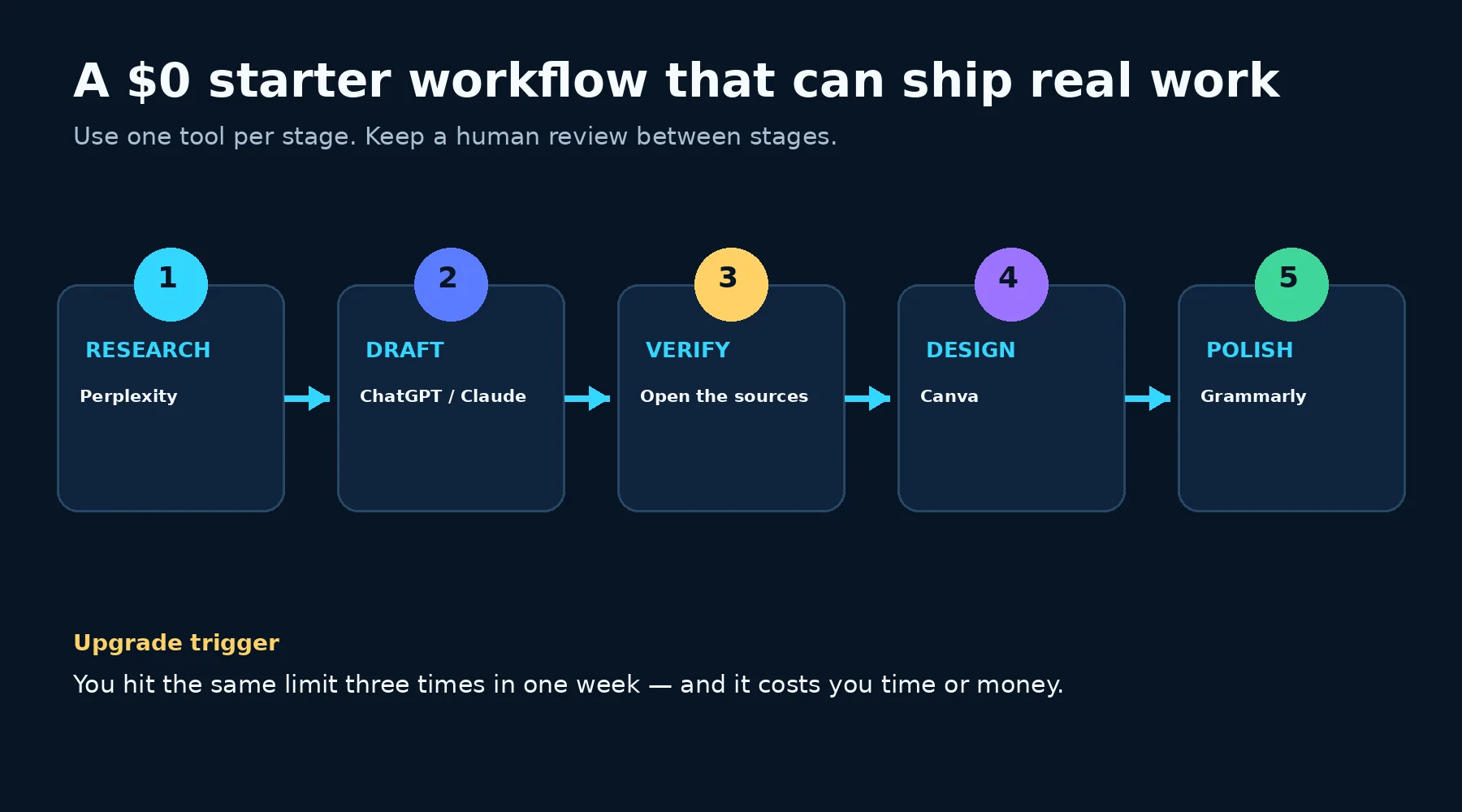
A free tool at each stage is enough to publish useful work — if verification stays in the loop.
Design and video tools: turn ideas into something people can use
Creation tools feel magical because the output appears instantly. The hidden work comes next: checking hands, text, logos, cuts, captions, music rights, and brand consistency. Budget time for that final pass.
6. Canva
The best beginner design tool is the one you can still edit after AI helps. Canva combines generation with a familiar editor. That matters because the first AI layout is rarely the final layout. You can replace the image, shorten the headline, fix spacing, and save a template instead of starting over.
Best for: Social posts, presentations, flyers, simple videos, thumbnails, and reusable brand templates.
Free or paid? Canva offers a real free plan with limited AI use. Paid plans raise AI allowances and unlock more premium assets and brand controls; pricing can vary.
Practical trick: Create three locked rules for every design: one headline font, one body font, and one accent color. AI variety is not the same as brand consistency.
Honest catch / skip if: You need pixel-level professional design control or high-end image generation more than editable layouts.
Pricing / feature source: Canva: official pricing
7. Adobe Firefly
Pick it when image editing matters more than making a poster. Firefly fits a visual workflow where you want to generate and then refine. It is especially useful when the task is specific — extend this background, remove this object, or create three visual directions — rather than “make my entire campaign.”
Best for: Generating image concepts, removing or replacing objects, extending backgrounds, and working alongside Adobe tools.
Free or paid? A limited free tier is available. Paid Firefly plans use monthly credits; current US plan pricing and credit rules should be checked before purchase.
Practical trick: Generate components, not finished ads. Add accurate product details, prices, logos, and legal copy manually so the final asset stays trustworthy.
Honest catch / skip if: You mainly need templates and quick social layouts; Canva will usually be faster.
Pricing / feature source: Adobe: Firefly (official)
8. CapCut
Fast video wins only when the captions are correct. CapCut removes several beginner bottlenecks at once: trimming, vertical formatting, captions, simple effects, and social-ready export. That speed is useful, but templates can make every video look like everyone else’s.
Best for: Reels, Shorts, TikTok-style edits, auto-captions, background removal, and fast mobile or desktop workflows.
Free or paid? The free editor is strong enough for basic short-form work. Paid tiers, AI credits, templates, and pricing vary by region and platform.
Practical trick: Read every caption aloud while watching the timeline. Names, prices, and technical terms are the words automatic captions miss most often.
Honest catch / skip if: You need advanced color work, complex audio mixing, or precise multi-camera editing.
Pricing / feature source: CapCut: official site
9. Descript
Edit spoken content as if it were a document. Descript turns the transcript into the editing surface. Delete a sentence and the matching audio or video disappears. For people intimidated by timelines, that mental model can unlock editing quickly.
Best for: Podcasts, interviews, tutorials, screen recordings, and videos driven by speech.
Free or paid? A free plan lets you test the workflow. Hobbyist is listed at $24 monthly or $16 per month on annual billing; higher tiers add media hours and AI credits.
Practical trick: Keep a backup of the original recording. Transcript edits can make a cut look clean while creating an unnatural breath or jump in the media.
Honest catch / skip if: Your videos depend on motion graphics, cinematic color, or complex visual layering.
Pricing / feature source: Descript: official pricing
Writing, notes, and meetings: reduce cleanup without losing judgment
10. Grammarly
It is a final-pass assistant, not a replacement for your point of view. Grammarly works where you already write, which makes it easier to catch small errors before they escape. The risk is accepting every suggestion and flattening your voice into safe corporate language.
Best for: Grammar, clarity, tone checks, and polishing email, documents, and web copy across apps.
Free or paid? The free plan handles core corrections and limited AI use. Pro is listed at $30 monthly or an effective $12 per month when billed annually upfront.
Practical trick: For important copy, compare “before” and “after” side by side. If the revised sentence sounds less like you, keep the original and fix only the error.
Honest catch / skip if: You want an idea generator or long-form research assistant. Its strongest role is polishing, not discovering what to say.
Pricing / feature source: Grammarly: official plans
11. Notion AI
It becomes useful when the answer is already somewhere in your workspace. Notion AI is not compelling just because it can write. Its advantage appears when your projects, notes, and decisions already live in Notion. Context reduces the setup you repeat in every prompt.
Best for: Turning notes into tasks, summarizing internal pages, drafting from project context, and searching a team knowledge base.
Free or paid? Free and Plus workspaces provide limited AI trials. Full AI features are bundled into Business, listed at $20 per member per month with annual billing or $24 monthly.
Practical trick: Fix the workspace before blaming the AI. Old pages, vague titles, and duplicate decisions create bad retrieval and confident confusion.
Honest catch / skip if: Your notes live elsewhere or you only need occasional drafting. A general assistant will cost less and add less setup.
Pricing / feature source: Notion: official pricing
12. Otter.ai
A transcript is a draft record, not the meeting itself. Otter can free you from frantic note-taking, especially when you need to find who said what later. But transcription quality changes with accents, audio quality, jargon, and people talking over each other.
Best for: Live transcription, searchable meeting notes, summaries, and action items for recurring calls.
Free or paid? Otter’s Basic plan includes 300 transcription minutes per month. Pro is listed at $16.99 monthly or $8.33 per user per month with annual billing.
Practical trick: Tell participants when a meeting is being recorded or transcribed, and follow applicable workplace rules and local law. Consent is part of the workflow.
Honest catch / skip if: You cannot get clear permission, your meetings contain highly sensitive material, or you only take a few notes each month.
Pricing / feature source: Otter.ai: official pricing
Presentations, voice, and automation: use after the basics work
13. Gamma
The first draft arrives fast; the useful deck still needs an editor. Gamma can solve the blank-slide problem in minutes. It is strongest when you already know the story and want structure, layout, and visual rhythm — not when you expect the tool to invent the argument.
Best for: Turning an outline or document into a web-first presentation, brief, or simple microsite.
Free or paid? The free plan includes one-time starter credits and keeps Gamma branding. Plus is listed at $12 monthly or $9 per month with annual billing.
Practical trick: If the final deliverable must be PowerPoint, export early and inspect every slide. Web-native layouts can shift during conversion.
Honest catch / skip if: Your client requires perfect PPTX fidelity or a heavily branded, animation-rich presentation.
Pricing / feature source: Gamma: official pricing
14. ElevenLabs
Natural voice is valuable only when you have the right to use it. ElevenLabs makes polished speech accessible to people without a recording setup. The important decision is not just “does it sound real?” It is “do I have permission, and does this plan cover my intended use?”
Best for: Narration, multilingual voiceovers, audio prototypes, and approved voice cloning.
Free or paid? The free plan includes limited monthly credits and is not positioned for commercial use. Commercial rights begin on the Starter plan, listed at $6 per month.
Practical trick: Spell out unusual names phonetically and split long narration into short sections. This makes revisions cheaper and easier to control.
Honest catch / skip if: You need free commercial output, high-volume utility audio, or any clone of a person who has not clearly consented.
Pricing / feature source: ElevenLabs: official pricing
15. Zapier
Automation should remove a boring step, not hide a broken process. Zapier is most useful after you can draw the process on paper. The AI can help build or transform a workflow, but you still need to know what triggers it, what data moves, and what happens when a step fails.
Best for: Connecting apps, moving form responses, creating tasks, routing leads, and adding AI to repeatable workflows without code.
Free or paid? The Free plan includes 100 tasks per month and two-step Zaps. Professional starts at $19.99 per month with annual billing for a higher task allowance and multi-step workflows.
Practical trick: Add a failure alert and inspect task history during the first week. Silent errors are more expensive than manual work because they look finished.
Honest catch / skip if: The process changes every time, the action is high-risk, or the task volume makes per-task pricing unpredictable.
Pricing / feature source: Zapier: official pricing
Three beginner stacks that avoid duplicate subscriptions
The fastest way to waste money is to pay for three tools that all write paragraphs. Build a small chain in which each tool has a different job.
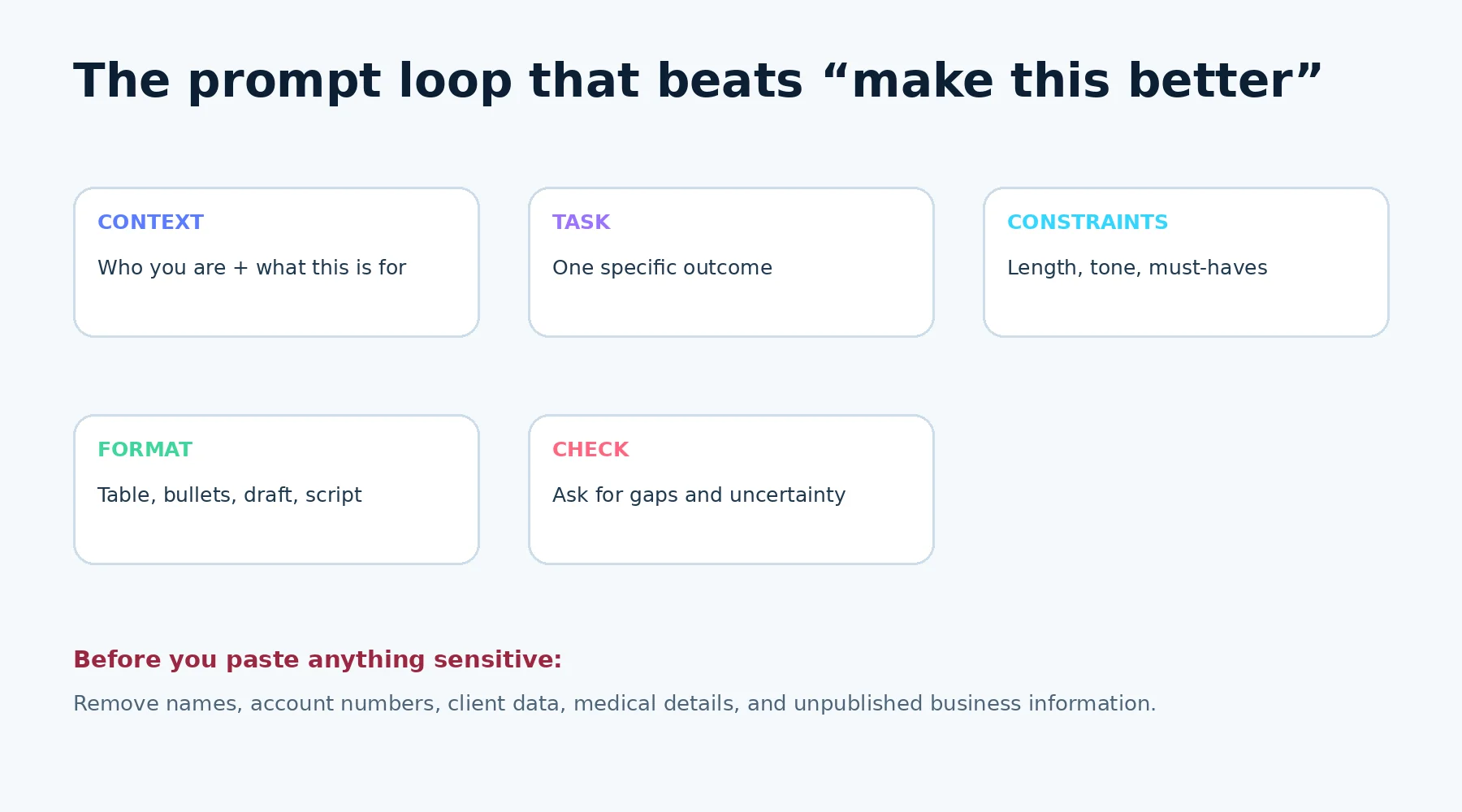
A better prompt usually saves more time than a more expensive plan.
Copy this prompt before you upgrade anything
Context: I am [role] working on [project] for [audience].

Task: Create [specific outcome].

Constraints: Keep it to [length], use [tone], include [must-haves], and do not invent missing facts.

Format: Return it as [format].

Check: Before finalizing, list missing information, uncertain claims, and what I should verify.
A simple upgrade rule that protects your budget
Use the same free tool for one full week. Track every time a limit interrupts a real task. Upgrade only when all three statements are true:
- The tool already produces useful output in your workflow.
- The same limit blocked you at least three times.
- The time or revenue saved is worth more than the monthly fee.
Do not pay to “unlock potential.” Pay to remove a measured bottleneck. That rule sounds conservative because it is — and it keeps beginners from building a $100-per-month collection of tabs.
Seven practical AI habits that prevent expensive mistakes
- Keep the original: Save source files and the pre-AI draft. You need a clean way back when an edit goes too far.
- Ask for uncertainty: A useful assistant should show what it does not know. Add “flag assumptions and missing evidence” to factual prompts.
- Verify high-stakes details: Open the source for prices, dates, medical or legal guidance, policies, quotes, statistics, and product claims.
- Remove sensitive data: Use placeholders for names, account details, private customer information, and unpublished plans.
- Review rights: Check commercial-use rules for generated images, voices, music, templates, and stock assets before publishing.
- Start small: Test a two-minute clip, one-page document, or ten-row dataset before feeding a large project into a new workflow.
- Measure one outcome: Track minutes saved, errors reduced, leads handled, or output shipped. “It feels faster” is not enough to justify another subscription.
Frequently asked questions
What is the easiest AI tool for a complete beginner?
Among easy AI tools for beginners, ChatGPT is the broadest single starting point, while Claude is an excellent alternative for long documents and thoughtful editing. Try both free plans on the same real task and keep the one whose output needs less correction.
Can I use these AI tools for free?
Yes. Every one of these easy AI tools for beginners has either a free plan or a limited free trial. The free versions are enough to learn the workflow. Paid plans mainly raise limits, add premium models or assets, remove branding, or unlock commercial and team features.
Should I pay for more than one AI assistant?
Usually not at first. Paying for ChatGPT, Claude, Gemini, and another general assistant creates overlap. Choose one general assistant, then add a specialist only when it solves a different job, such as design, transcription, or automation.
Which AI tool is best for research?
Perplexity is convenient for open-web research because it provides links alongside answers. NotebookLM is better when you want answers limited to a fixed set of documents. In both cases, open the sources and verify consequential claims.
Which AI tool is best for content creators?
A practical beginner stack is ChatGPT or Claude for ideas and scripts, Canva for graphics, and CapCut for short-form video. Add Descript for spoken long-form editing or ElevenLabs for licensed narration only when the need is consistent.
Will AI-generated content rank on Google?
Google’s systems reward helpful, reliable content rather than a particular writing method. Thin, repetitive, unverified pages are risky whether a human or AI produced them. Add firsthand examples, accurate sourcing, original comparisons, and real editorial judgment.
How do I know when a paid plan is worth it?
Upgrade when a free-plan limit repeatedly blocks a task that already creates value. If you cannot name the limit, the task, and the value of removing it, stay free.
Are AI tools safe for confidential information?
Consumer AI tools are not a default place for secrets. Remove sensitive data, check the provider’s current data controls, use approved workplace tools, and follow your organization’s policies before uploading private material.
Your first move: pick one task, not one brand
Choose a task you already need to finish this week. Draft a customer email. Summarize three reports. Turn a product photo into a social post. Caption a 30-second video.
Then test one free tool from the matching category. Use the prompt framework above. Check the output against the source. Save what worked.
That is how an AI tool becomes useful: not when it surprises you, but when it quietly removes a repeat problem without creating a new one.